
Java
Energy Shaders Java Energy Shaders for Java. A vanilla Minecraft shaderpack that aims to make the game more vibrant and aesthetic. Delivering a completely new v
Publisher
linusdev
Downloads
10
Top category
SHADER
Updated
2026-04-26
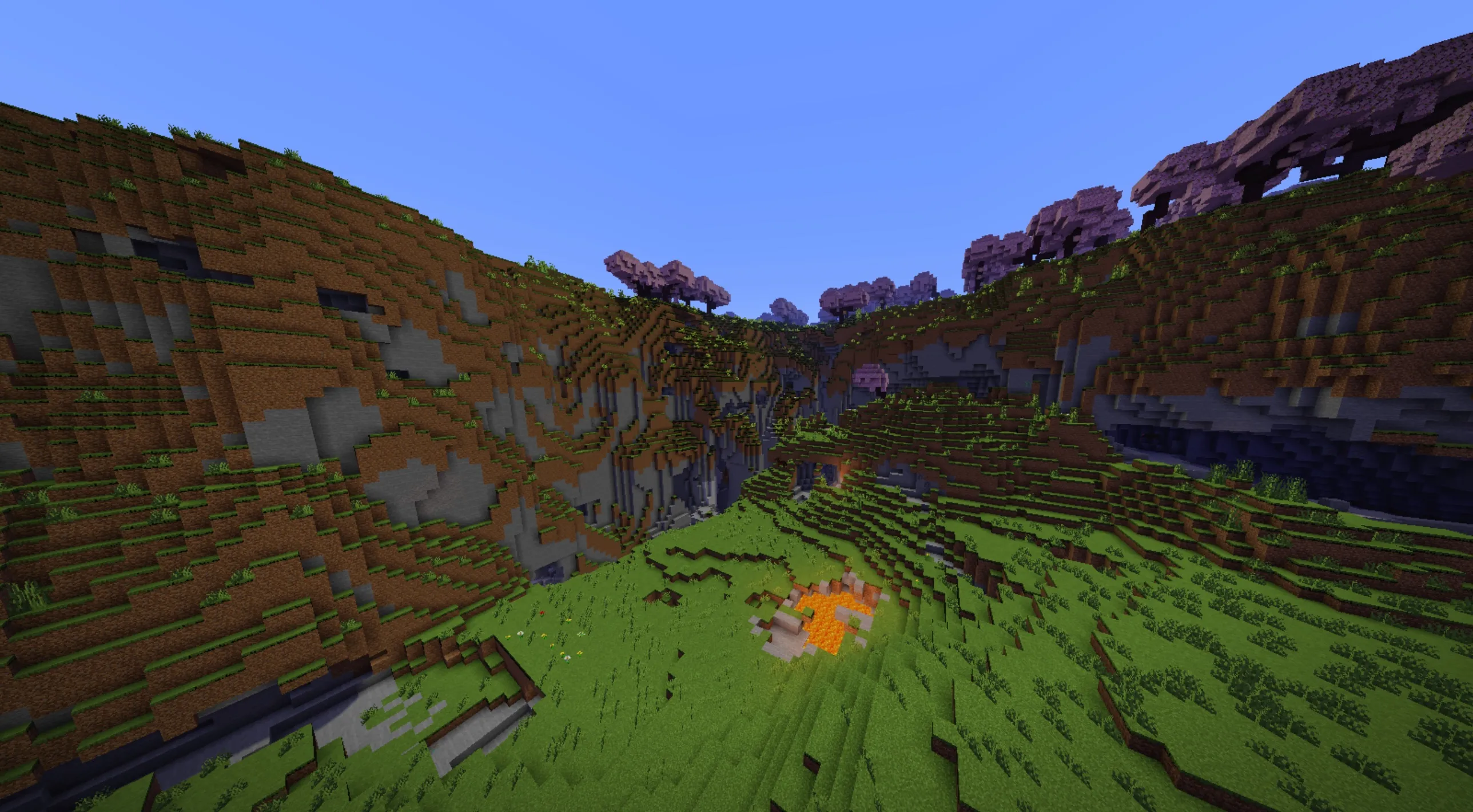
Energy Shaders for Java. A vanilla Minecraft shaderpack that aims to make the game more vibrant and aesthetic. Delivering a completely new visual style to Minecraft. No Optifine/Iris required!
Energy Shaders is a shaderpack/resourcepack that provides a more colorful vanilla experience. It achieves this without requiring any additional mods or causing a frame rate drop.
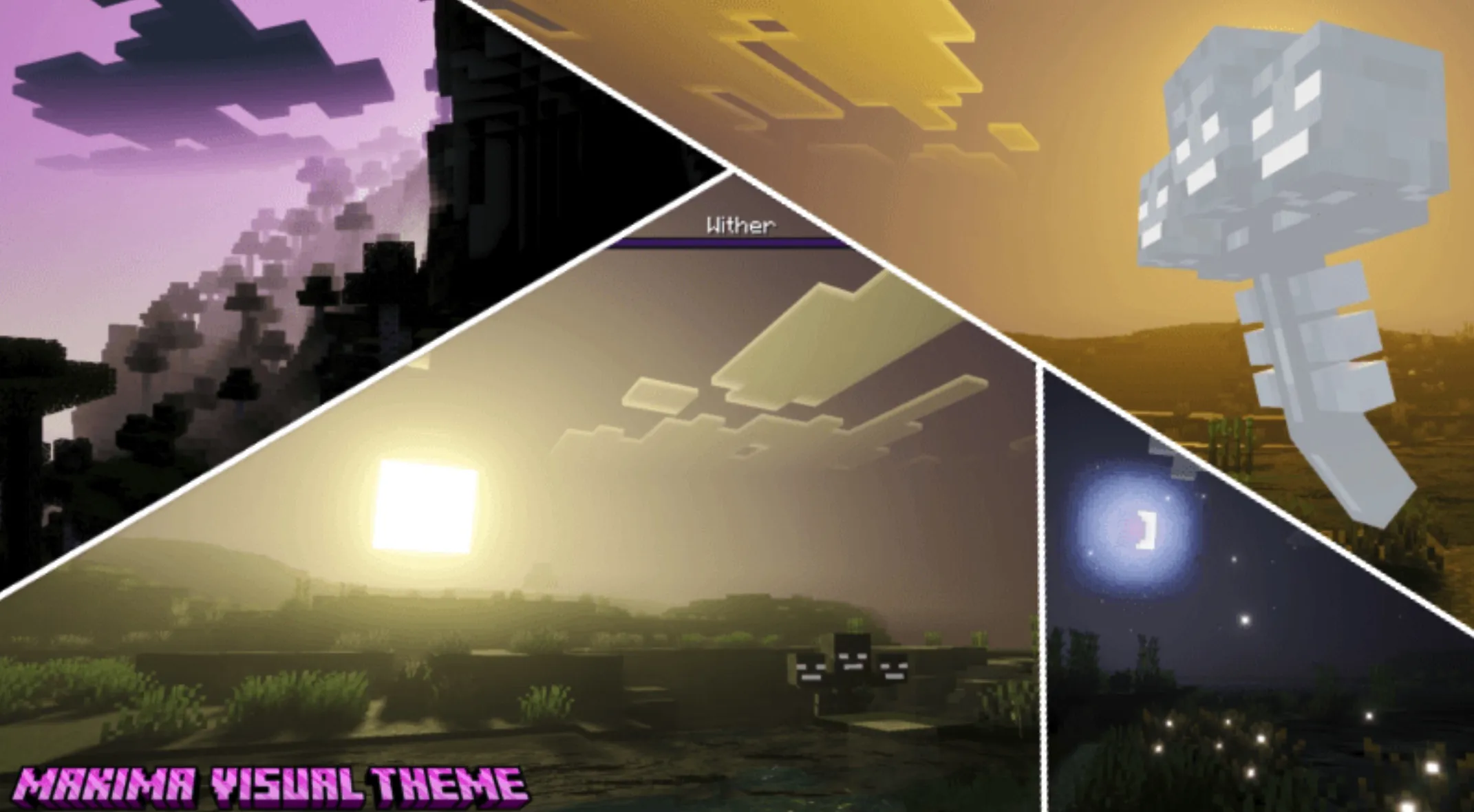
It is best to examine the gallery or try the shaderpack out for yourself. Here is a list of some features:
You can simply enable it as a resourcepack (copy the .zip into the resourcepacks directory). If you are using Sodium, the Sodium Core Shader Support mod is required. Please note that this pack does not work with Optifine.
Energy Shaders also offers a high degree of customization. Since this is a vanilla-based shaderpack, these settings must be edited manually.
First, download the settings template. Then, copy the downloaded zip file to your resourcepacks directory. You can find this location by pressing "Open Pack Folder" in the Minecraft resource pack selection screen. Next, extract the zip file and delete the archive, so that only the extracted directory ES Settings Java remains. You may rename this directory to your liking.
Now, edit ES Settings Java/pack.mcmeta with a text editor of your choice and replace YOUR_NAME with your name or alias.
Next, you should test if everything works. Activate Energy Shaders [Java] and the ES Settings Java pack you just created. Ensure that the ES Settings Java pack is placed above Energy Shaders [Java]. Open a world and verify that Minecraft does not crash.
Now you can begin changing actual settings. Open ES Settings Java/assets/minecraft/shaders/include/es-settings.glsl in your preferred text editor.
Inside, you will find many lines starting with // #define. These are the configurable settings. All settings must be enabled first (by removing the //) before their values can be altered. Some settings do not have a value; these simply enable or disable a specific feature.
After changing a setting, go back in-game and press F3 + T, which will reload all resource packs, thereby applying your changes.
The line:
// #define DISABLE_SHADOW can be changed to:
#define DISABLE_SHADOW This action will disable shadows cast by blocks, trees, etc.
NOTE: The // must be removed as shown above!
The line:
// #define SATURATION 1.2 can be changed to:
#define SATURATION 0.0 which will render the game in grayscale.
NOTE: The // must be removed as shown above! If you wish to switch back to the default value, simply add the // again:
//#define SATURATION 0.0 Some settings are documented within es-settings.glsl. Others may be harder to explain, and it is best to experiment to find out their effects. Generally, if a setting contains VEC3(...), it is a setting with three values (red, green, blue).
Of course, you can always ask for help on my Discord server.
Actually, the base settings are contained within Energy Shaders as well. However, it is much more convenient to keep them in an additional pack because you can update Energy Shaders without losing your personal settings!