For many people playing Minecraft online, the biggest fear isn't a mob or a sudden disconnection, but a line of text that pops up on the screen: "Connection timed out: getsockopt". It looks like a cold, system-level error message with almost no helpful explanation. As a result, players often start restarting the game, reinstalling the launcher, switching servers, or deleting configuration files, only to realize after hours of frustration that the culprit was likely just an unchecked permission in the firewall.
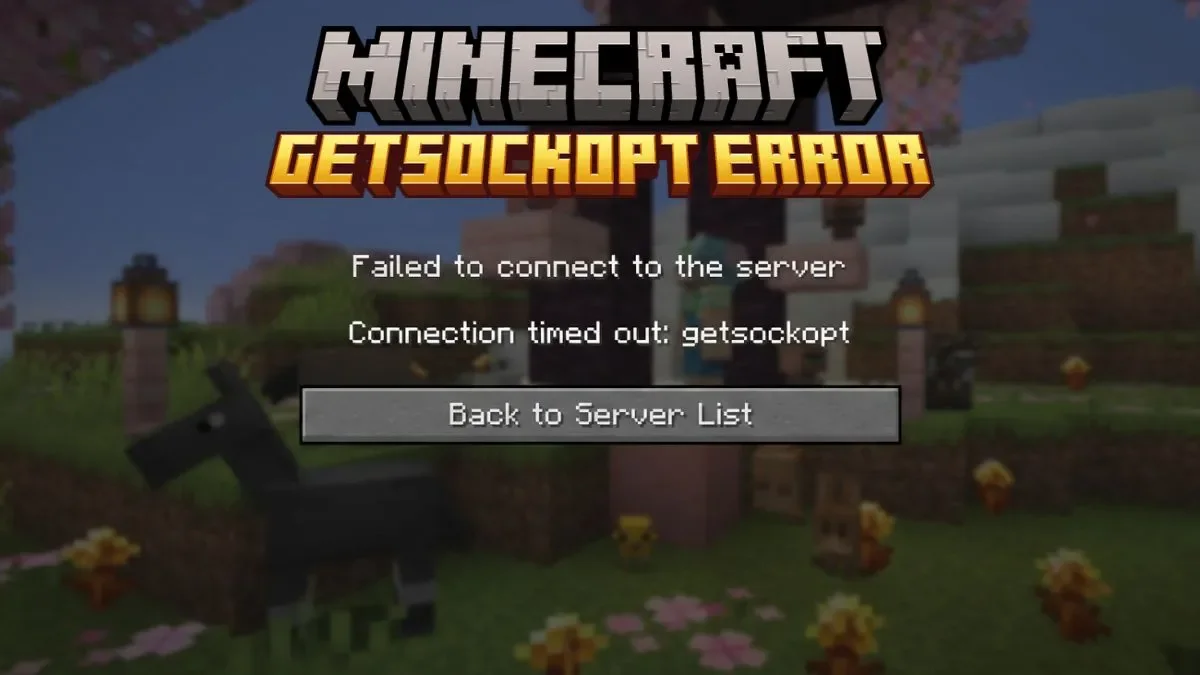
The most troublesome aspect of this error isn't its complexity, but its ability to mislead. getsockopt is essentially a network connection failure: your game is trying to establish a stable connection with the server, but it is being interrupted somewhere along the way. This "somewhere" could be the server itself, your home network, the computer's firewall, antivirus software, DNS settings, or even the Java environment. Unlike an error that explicitly tells you "file corrupted", this one is more like someone saying: "Something is blocking your path," without telling you who it is.
The truly reliable way to handle this isn't to tear everything apart immediately, but to rule out the simplest possibilities first. You should first confirm whether the server you want to join is online, whether the IP address is entered correctly, whether the port is missing, and whether your Wi-Fi or Ethernet connection is stable. If your computer is slow at loading web pages, or if others also cannot access that server, then tinkering with your client is pointless. Many players make the mistake of spending an entire afternoon "fixing" their computer when the server was simply down.
If the server is fine, the next step is to check the firewall. Windows Defender Firewall and third-party antivirus software are meant to protect your computer, but they sometimes flag the Java connections that Minecraft relies on as suspicious behavior. This is especially true for Java Edition players; the game process might not always appear as "Minecraft"—it could show up in the allowed list as javaw.exe or Java Platform SE binary. Missing even one checkmark can cause your connection to time out repeatedly.
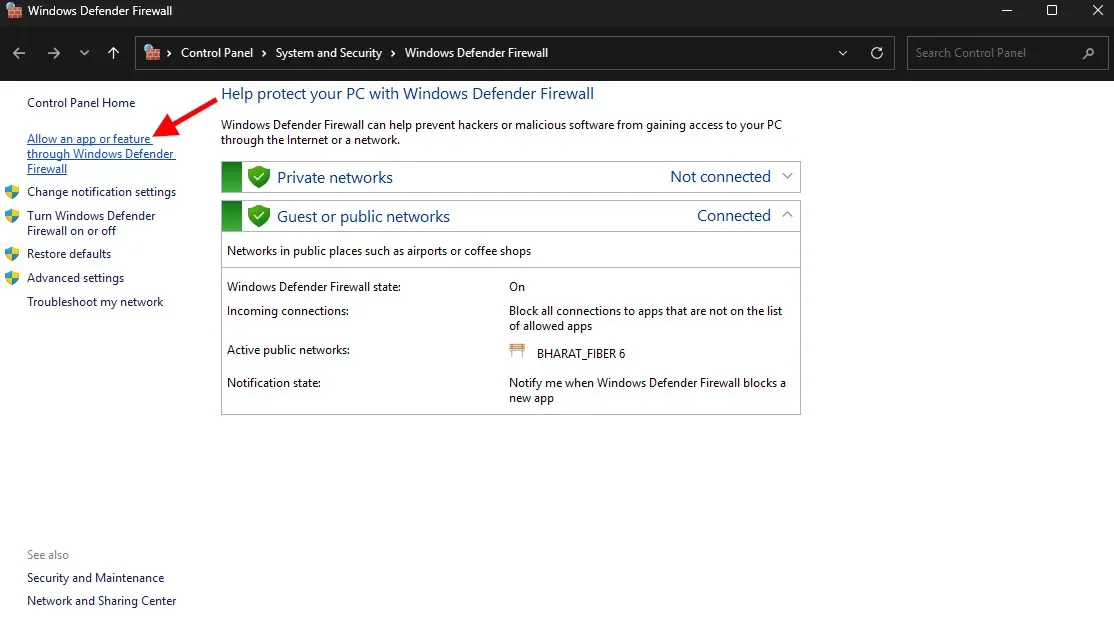
On a Windows PC, you can open the Start menu, search for Windows Defender Firewall, and navigate to the list of apps allowed to communicate through the firewall. After finding javaw.exe, Java Platform SE binary, Minecraft, and Minecraft Launcher, check both the Private and Public network columns. If the corresponding program is not in the list, use Allow another app to manually add the startup file from the installation directory. This step may seem trivial, but it is often the key to resolving getsockopt errors.
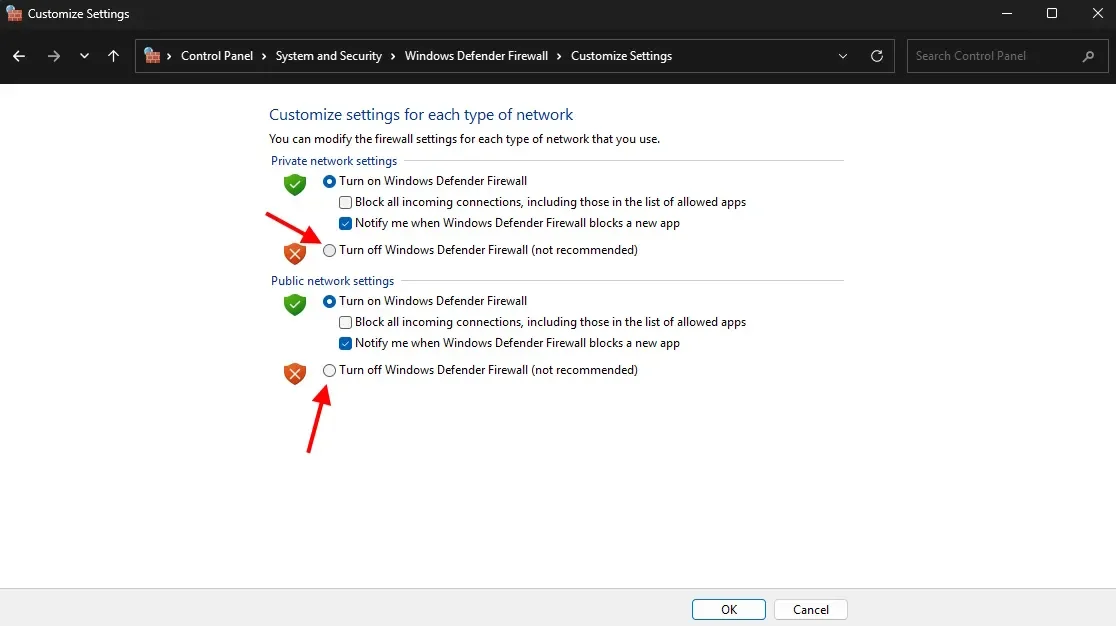
There is also a more direct verification method: temporarily disable the firewall. Note that this is only for a short time, not for long-term exposure. You can disable Private and Public network protection in the firewall settings for a moment and try connecting to the server again. If the error disappears, you can basically conclude that the interference is coming from your security software. Be sure to turn the protection back on afterward, because leaving your entire computer exposed just to play a game isn't fixing a problem—it's digging a new hole for yourself.
Beyond the firewall, another easily overlooked point is DNS. You can think of it as the address book of the internet; if the default DNS is slow or unstable, the game might hang while trying to connect to the server. A common solution is to switch to Google DNS: go to the Network and Sharing Center in the Control Panel, open the properties of your current Wi-Fi or Ethernet connection, find Internet Protocol Version 4 (TCP/IPv4), change the Preferred DNS server to 8.8.8.8, and the Alternate DNS server to 8.8.4.4, then restart your computer to apply the changes.
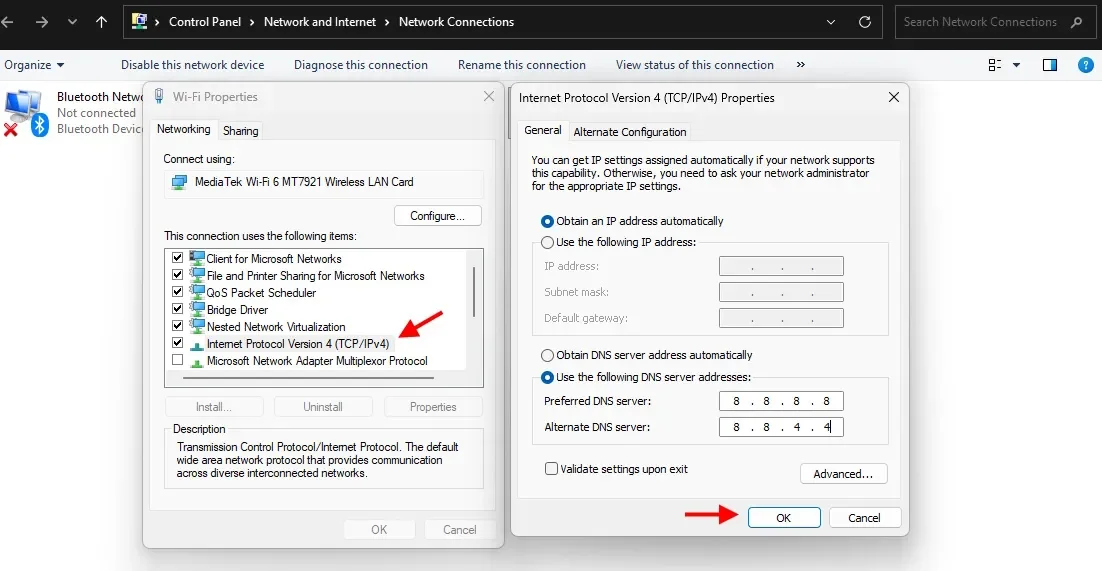
Don't underestimate this step. Many instances of "cannot connect to server" aren't because the server is rejecting you, but because your computer got "lost" while trying to find the path. Changing DNS isn't a cure-all, but it can rule out a very annoying source of instability. This is especially worth checking if you only experience timeouts on certain servers or if things suddenly return to normal after switching networks, as DNS and ISP routing are likely suspects.
Finally, check Java. Since Minecraft Java Edition relies on the Java environment, outdated versions, conflicting versions, or corrupted components can all make online play unstable. getsockopt is usually not caused by the mods themselves—it is more of a network and system connection issue. However, if you are using modpacks, third-party launchers, or haven't updated your runtime environment in a long time, then upgrading Java, updating your launcher, and ensuring your game version matches the server version should all be on your troubleshooting checklist.
Ultimately, the truly intimidating thing about getsockopt is that it makes players think they've encountered a deep technical issue. But when you break it down, it's just a connection path: Is the server online? Is the address correct? Is the network stable? Is the firewall allowing the connection? Is the DNS resolving normally? Is the Java environment holding you back? As long as you troubleshoot along this path, in most cases, you won't need to reinstall the game, let alone delete all your saves and configurations.
If you've tried all these methods and the error persists, stop tinkering blindly. Try a different device, a different network, or contact the server administrator and Mojang Studios support directly. The worst part about connection issues isn't the difficulty, but the tendency for players to change all variables at once in a panic, leaving them unable to tell which step actually fixed the problem. When you encountered getsockopt, what was the trick that saved you? Was it the firewall, the DNS, or was it the server itself? This is a pitfall many of us have stepped into.