
Bedrock
Holograms on dropped items Holograms on dropped items Above each dropped item is displayed a text-hologram, which presents the name of the item and its quantity
Publisher
sirob
Downloads
27
Top category
MOD
Updated
2026-04-27
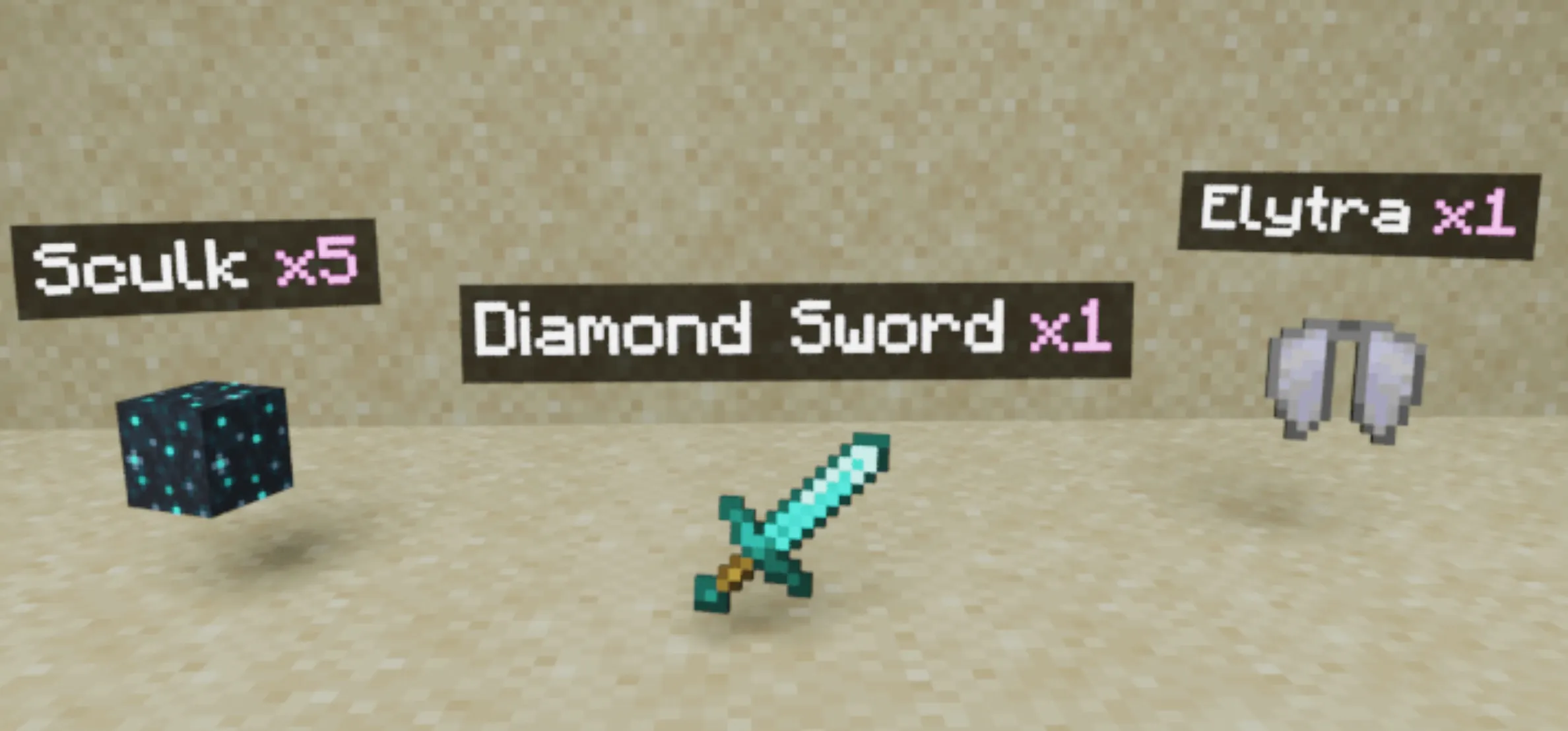
Holograms on dropped items
Above each dropped item is displayed a text-hologram, which presents the name of the item and its quantity! This addon is compatible with all other addons. From now on, you can clearly identify dropped items from a distance without needing to inspect their textures!
List of Features
Installation Guide
Download the Behavior Pack (BP) and Resource Pack (RP), then apply both packs to your Minecraft world.
How to Use
Apply the addon to your world, and it is ready to go! The addon will start functioning immediately upon entering the world.
Note: Once the addon is applied, it only affects newly dropped items. Items dropped prior to the installation will not display holograms.
Raycasting: When an obstacle lies between the player and the item in a straight line, the hologram will be hidden. Multiplayer Support: This addon is fully compatible with multiplayer sessions.
Addon Configuration
Enter the command: /function itemsHolograms_config This will open the settings menu where you can adjust the following:
In "Nearest items" mode: Holograms appear on objects within a set radius. With raycasting enabled, the system verifies item visibility first. Available options:
In "Crosshair" mode: Holograms are only displayed on items currently targeted by your crosshair. Raycasting does not apply here. Available options:
Changing the Hologram Pattern
Enter the command: /function itemsHolograms_config and scroll to the bottom.
You can modify the pattern to your preference. The pattern is limited only by character count (max 100), so let your imagination run wild!
FAQ
Q: Does this addon work on Realms? A: Yes. Download your realm world, enable the required experiments in the local save, add the addon, and upload it back. If it still doesn't work, it may be a bug within Realms itself.
Q: In multiplayer, holograms are visible to all players even in "crosshair" mode! A: This is a known bug that cannot be fixed at this time.
Q: The addon is not working! A: Please perform the following steps:
Q: The addon works locally but fails on the server! A: Follow the steps in the previous point. If you are using hosting services like Aternos, try toggling the experiment settings off and on again, as they sometimes fail to activate on the first attempt. Additionally, verify your host supports script execution (Beta APIs).