Bedrock UI+ Feature Breakdown
Bedrock UI+ is a brand-new user interface mod reconstructed based on HUD+. It not only deeply optimizes numerous in-game interfaces but also integrates a series of practical features designed to comprehensively enhance the player's gaming experience in survival mode, PvP, and other scenarios.
Start Screen
The main menu has undergone a meticulous layout adjustment, aiming to provide a cleaner operating environment:
- Moved the "Play" and "Quit" buttons to the bottom-left corner for easier access.
- Added a "Hide GUI" button.
- Consolidated the Dressing Room, Marketplace, and Settings buttons into the bottom area.
- Realms button is displayed only when a network connection is active.
- Adjusted the profile area to the top-left, integrating buttons for Achievements, Invites, Feedback, and Account management.
- Configured an expansion button to collapse or display additional feature options.
Settings Menu
- Interface background adjusted to a semi-transparent style.
- Introduced a quick camera settings feature.
- Supports quick difficulty adjustment.
- Optimized more quick-setting options to improve adjustment efficiency.
HUD Interface
The HUD interface is the core of this mod, providing a wealth of functional enhancements:
- Added a menu button next to the emote button.
- Equipped a shortcut toggle for F1 (Hide GUI) next to the pause button.
- Integrated functional clock and compass in the bottom-left corner.
- The experience bar displays the percentage to the left and experience points required for the next level to the right.
- Updated experience numerical style to be more similar to the Java Edition.
- Chat box position lowered to match the Java Edition.
- Hotbar supports displaying coordinates and in-game days.
- Provides clearer item naming displays and a durability viewer, with a low-durability warning added.
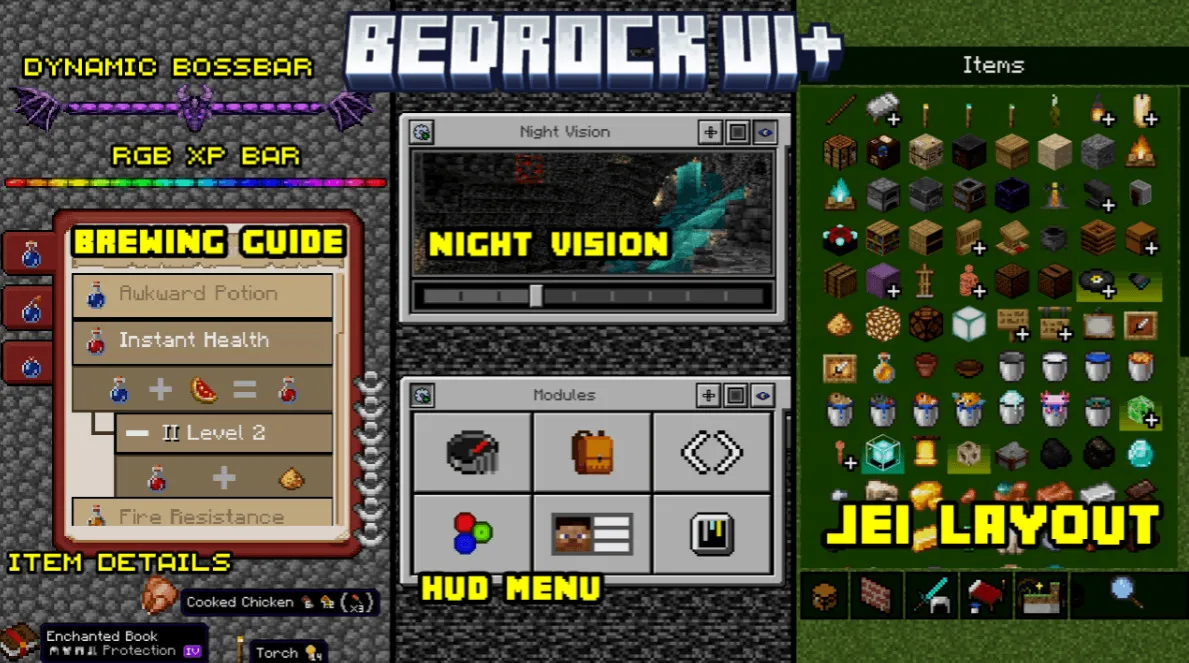
- Designed new dynamic Boss health bar textures for the Ender Dragon, Wither, and Raids.
In the pause menu, you can activate menu features according to your needs:
- Includes modules such as Debug Screen, Inventory HUD, Hotbar Selector, RGB XP Bar, Player List HUD, etc.
- Includes a Gamma (brightness) slider for player adjustment.
- Users can configure settings by activating the menu in the top-left corner of the pause screen; on Windows, use the ESC key to close.
Auxiliary Tools and Visual Aids
- Debug Screen: Real-time display of FPS, world name, game mode, dimension teleportation coordinates, chunk location, item names, and ID info.
- Inventory HUD: Preview inventory contents without opening the backpack.
- Hotbar Selector: Quickly switch selected items in the hotbar.
- RGB XP Bar: Supports dynamic animation effects.
- Player List HUD: Allows clicking on player names or avatars for quick actions.
- Ore Visualizer: Displays ore distribution based on Y-axis height. An ore chart is located in the top-right; the longer the chart, the denser the ore in that area. Also provides best mining height guides (yellow arrow for mining up, blue arrow for mining down).
- Custom Crosshair: Built-in 8 crosshair textures, supporting one-click activation of RGB crosshair mode.
- Custom Hotbar & Selection Textures: Provides 10 hotbar textures and 20 selection bar texture schemes.
- Night Vision Menu: Increases screen brightness; it is recommended to set the brightness level between 2-4.
Chat Interface
- Chat background adjusted to be transparent, combined with a streamlined chat history display, with a visual style closer to the Java Edition.
- Added an auto-complete feature above the "Send Message" button.
- Optimized command bar; all commands support click-to-trigger and auto-complete.
- Added a temporary memo feature (Note: records will be cleared after exiting the save).
- Integrated small calculator tool.
Container Interfaces
Includes backpacks, crafting tables, and various block containers, with some containers adopting color-rich texture designs.
Inventory and Backpack
- Adopts a JEI-style layout, supporting quick mode switching and quick access.
- Includes a quick-crafting button.
- Item Rarity Viewer: Yellow represents low rarity, light blue is rare, and magenta is epic.
- Provides a non-transparent JEI layout option, which can be toggled via configuration.
- Custom Name Colors: Item names support color codes. Use §h (Quartz), §i (Iron), §j (Netherite), §m (Redstone), §n (Copper), §p (Gold), §q (Emerald), §s (Diamond), §t (Lapis Lazuli), §u (Amethyst) to display the corresponding color border.
- Bundle Tooltips: Color changes dynamically with the bundle's color.
Various Crafting Tables and Containers
- UI optimized for chests, double chests, shulker boxes, ender chests, and barrels, with support for item search.
- Crafting interface integrates quick crafting, quick modes, and JEI layout.
- Furnace, blast furnace, and smoker interfaces display remaining fuel percentage and production progress.
- Brewing stand integrates brewing guide, fuel percentage, production progress, and potion search.
- Function interfaces for signs, anvils, grindstones, beacons, stonecutters (supports quick crafting), hoppers, enchanting tables, dispensers, looms, etc., have all been optimized.
- Villager Trading Interface: Unlocks all trade items without needing to level up the villager, and supports quick trading.
Extra Features and Custom Configuration
- Item Details: Supports English, Spanish, and Indonesian.
- Ambient light level display.
- Hunger and saturation value information.
- Enchantment information and tool icon display.
- Bundle content counter.
- Rich item tooltips.
Global Configuration Instructions
By editing the _global_variables.json file, players can customize the following options:
$use_jei_layout: Controls whether to enable the JEI layout (set to false to disable).$transparent_jei: Enabled by default; set to false to switch to a non-transparent style.$item_hover_text_position: Sets the item hover text position; supports bottom-right (default), bottom-left, top-left, and top-right.