How to Allocate More RAM to Minecraft
Minecraft is not particularly resource-intensive, and vanilla gameplay typically does not consume much system memory. However, when you install large texture packs, shaders, or modpacks, the game may crash, stutter, or even freeze entirely.
If you want to run a large number of mods or use high-resolution texture packs, increasing the memory available to Minecraft can often reduce issues caused by insufficient RAM and make the game run more stably.
Allocating More RAM to Minecraft Using the Official Launcher
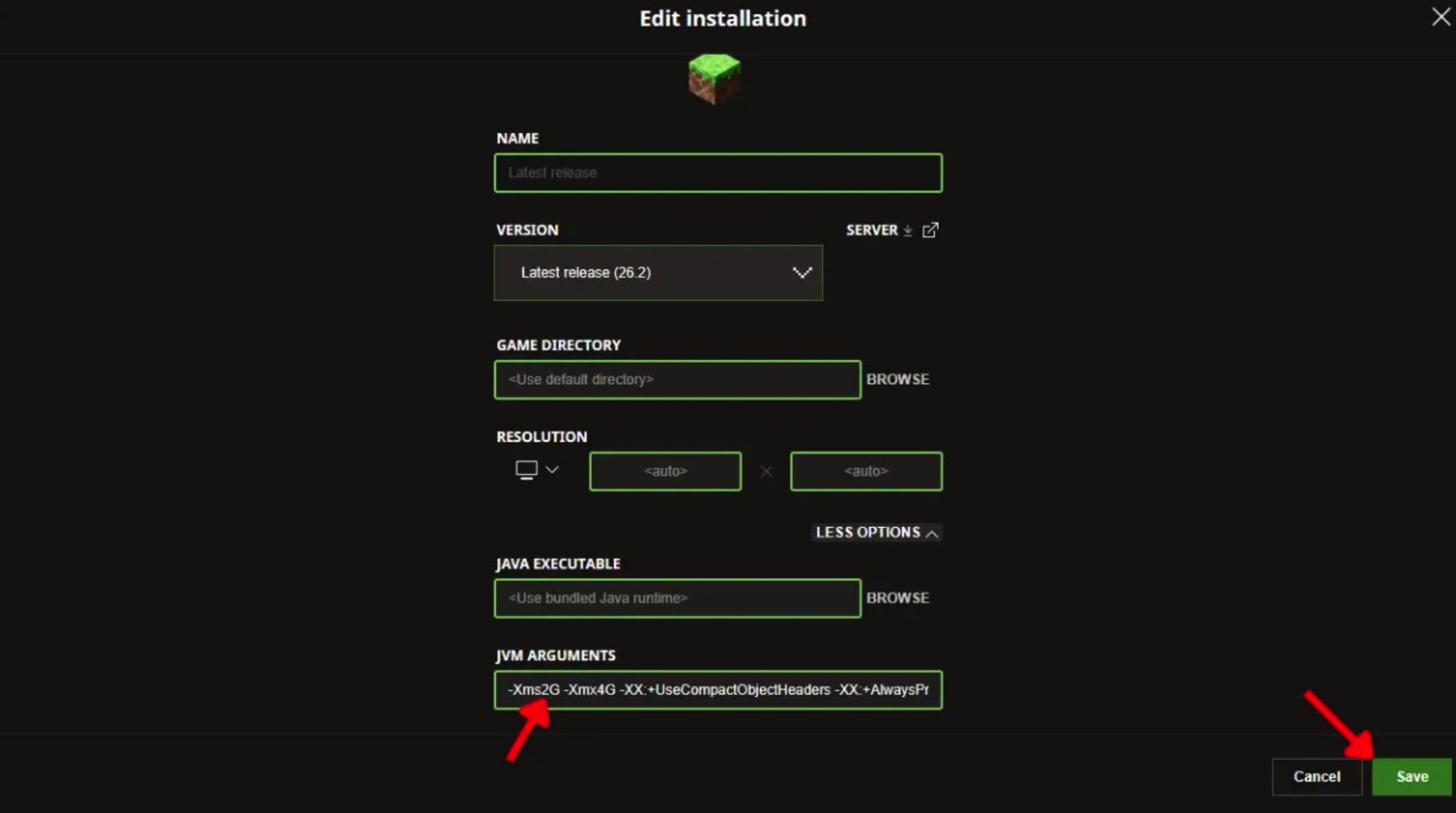
Many players still use the official Minecraft Launcher to start the game. You can manually adjust the amount of memory the game can use by finding the JVM arguments for the corresponding version.
Before making changes, keep one rule in mind: do not allocate more than 50% of your computer's total RAM to Minecraft. Allocating too much can reduce the memory available to the system and other programs, which may actually cause the overall system performance to slow down.
Follow these steps:
-
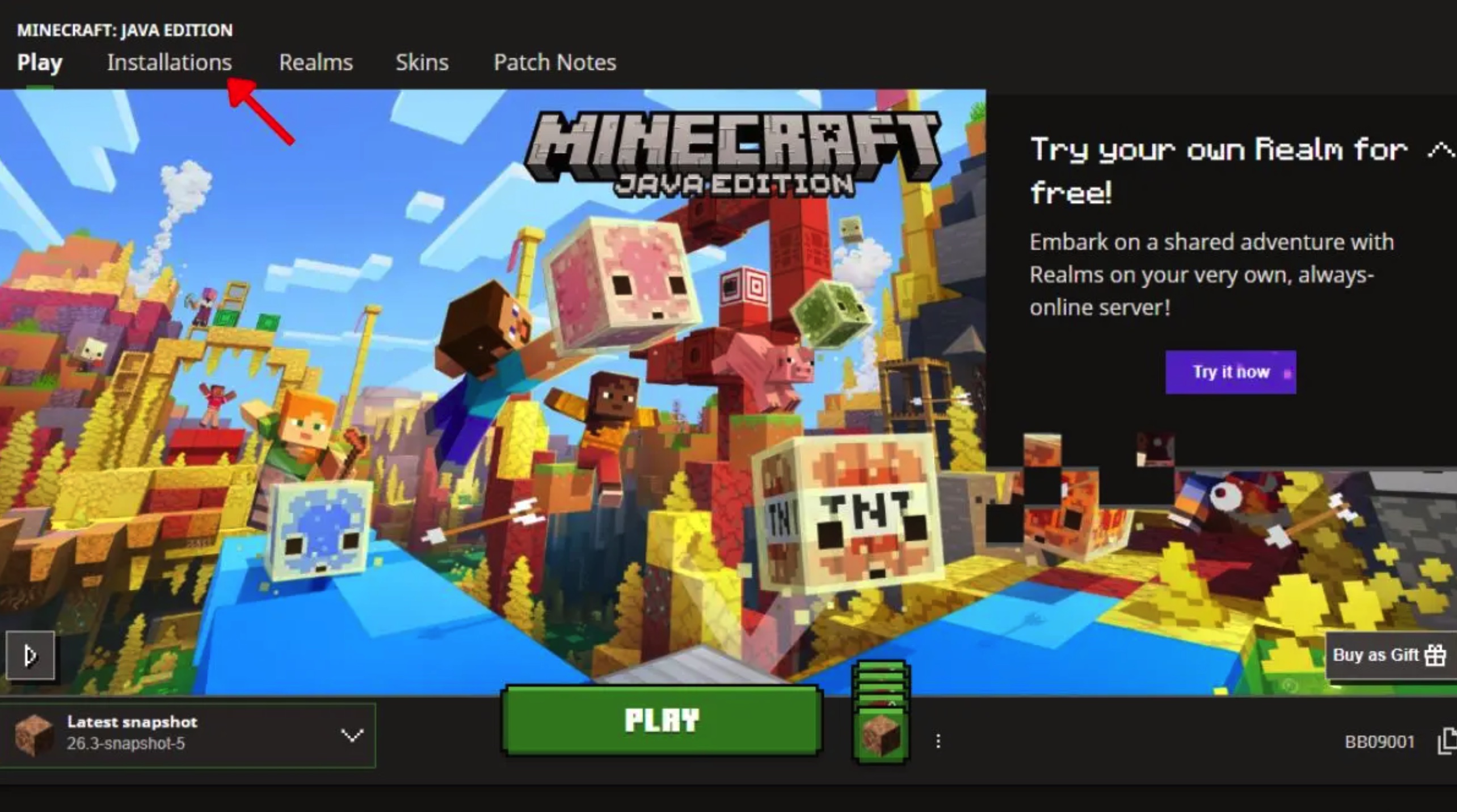
Open the Minecraft Launcher and go to the "Installations" tab.
-
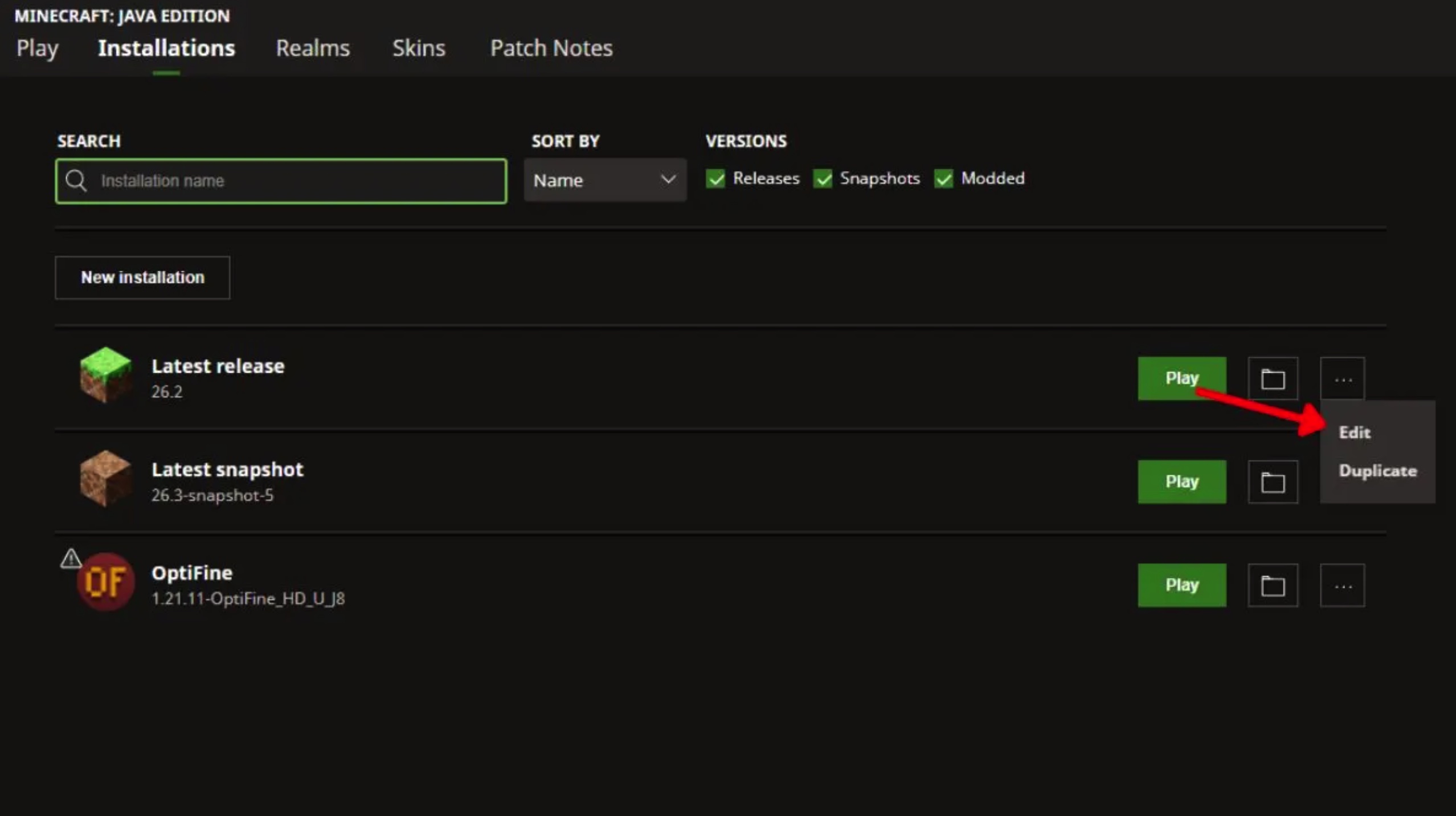
Find the version you usually play, click the "three dots" menu on the right, and select "Edit".
-
Click "More Options" to expand the advanced settings.
-
Locate the "JVM Arguments" text box. The arguments will typically contain
-Xmsand-Xmx. -
Modify the numbers following
-Xmsand-Xmxto adjust the initial memory and maximum memory, respectively. For example,-Xmx4Gmeans allocating a maximum of 4 GB of RAM to Minecraft. Click "Save" after you have finished making changes.
Once you launch the game, the new memory settings will take effect. After entering a world, press the F3 key on your keyboard; the current memory usage and allocation limit will be displayed in the top-right corner of the debug screen.
After increasing the memory, you can try using large mods like Distant Horizons or increase the game's simulation distance. However, more memory is not always better. If the world is massive or contains a large number of structures, you still need to adjust settings based on the performance of your processor, graphics card, and storage device.
Allocating More RAM to Minecraft Using CurseForge
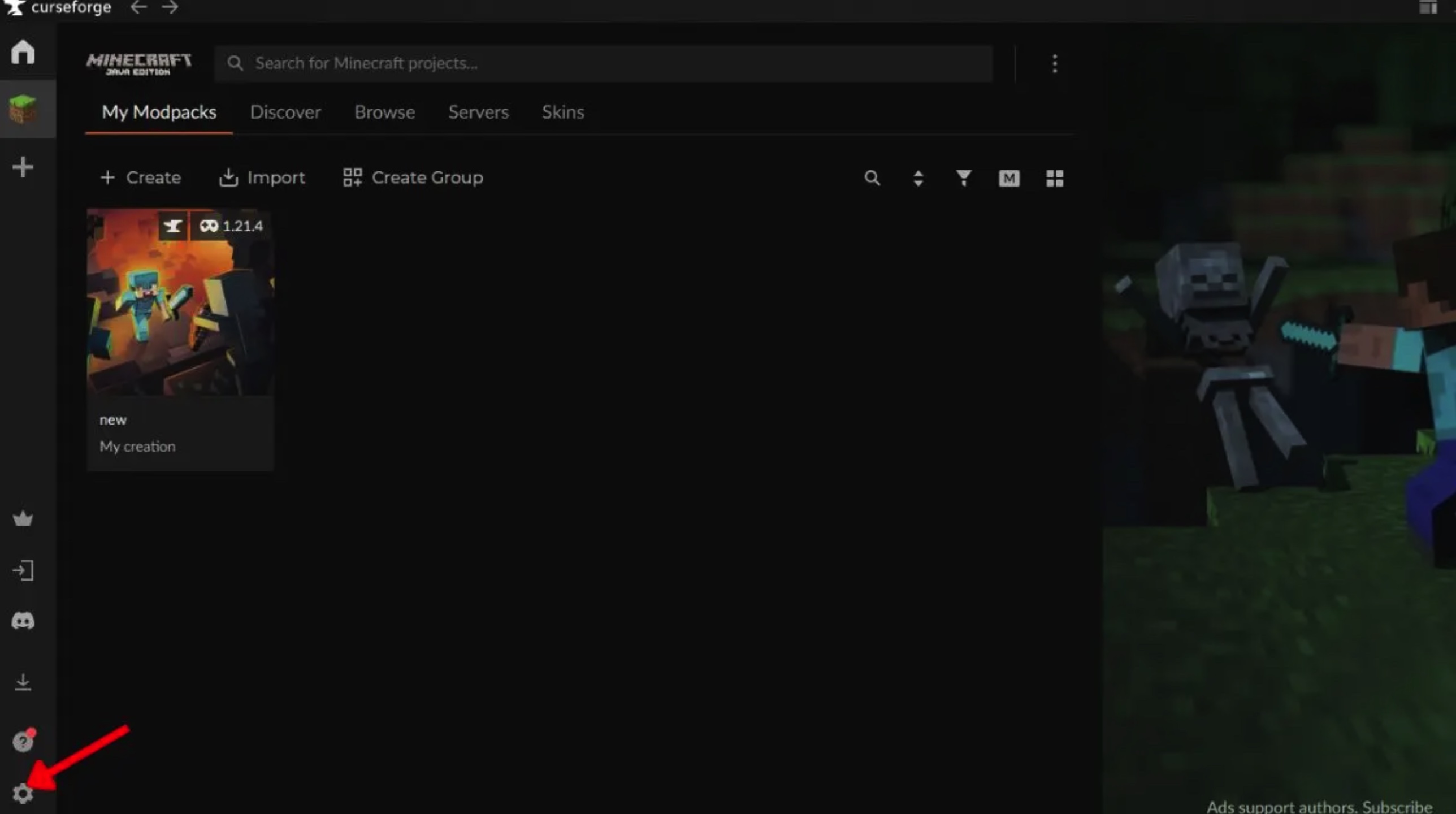
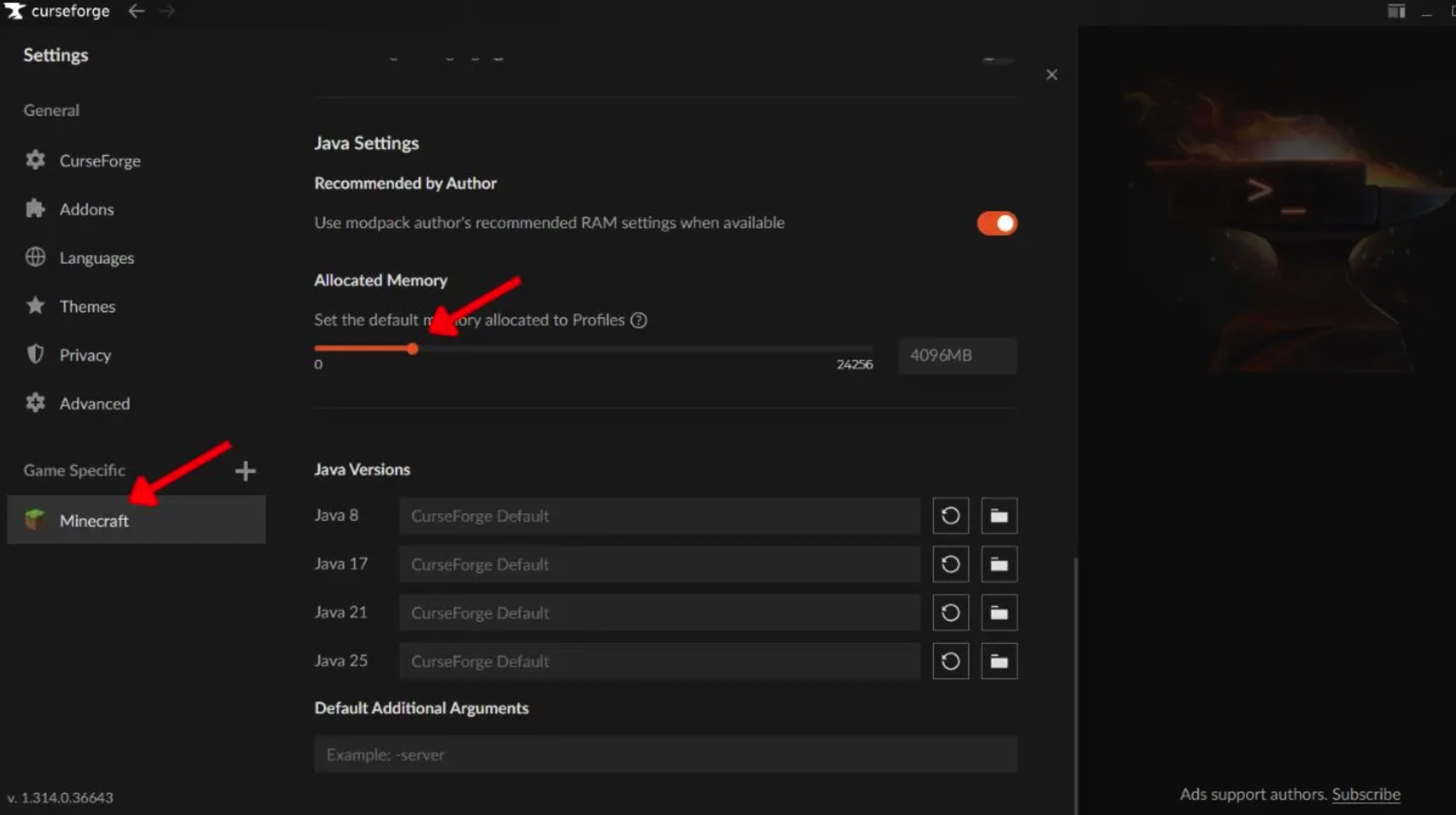
If you manage your Minecraft modpacks via CurseForge, adjusting memory is more intuitive. You don't need to manually edit JVM arguments; simply adjust the memory slider in the settings.
Follow these steps:
-
Open CurseForge and click the "Settings" icon in the bottom-left corner.
-
Navigate to the Minecraft section in the settings page.
-
Scroll down to find the "Allocated Memory" option under "Java Settings".
-
Drag the slider to the left or right to adjust the memory allocated to Minecraft. You can also enter a value directly into the text box on the right.
CurseForge will automatically save your changes. Once configured, return to the game page and launch the corresponding modpack. After entering a world, press the F3 key to view the current memory allocation in the debug screen.
Important Considerations Before Allocating More RAM
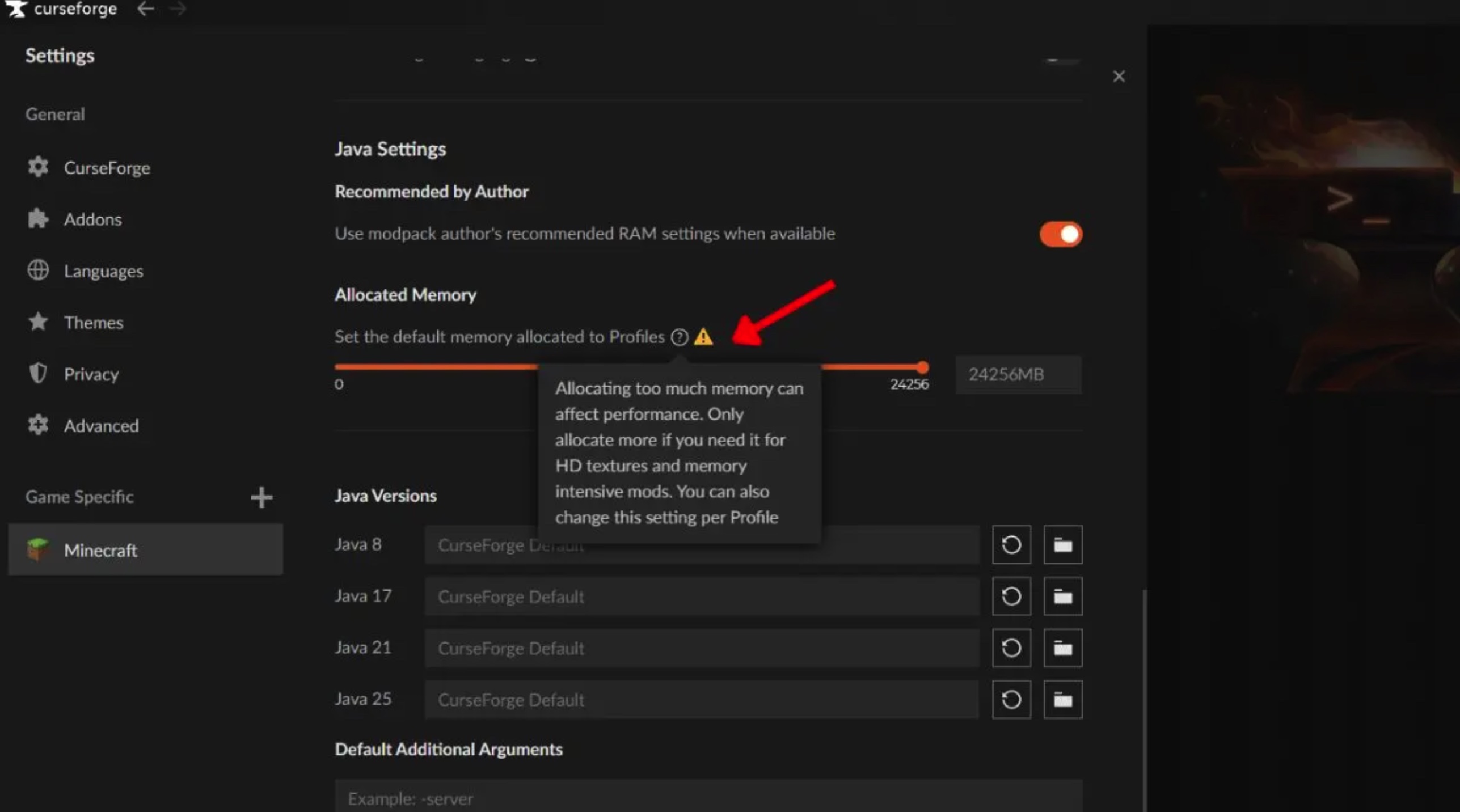
Increasing Minecraft's memory is not a universal solution for performance issues. If your game frame rate remains low after allocating more memory, the bottleneck may be your processor, graphics card, or high-resolution shaders, rather than insufficient RAM.
Before modifying settings, please note the following:
-
Check your Windows or macOS system settings first to confirm how much physical RAM your computer actually has.
-
Do not allocate all your free memory to Minecraft. The operating system itself, as well as background programs like browsers and voice chat software, also need memory to run properly.
-
Do not delete or modify other JVM arguments unless you understand what each parameter does. Usually, you only need to adjust the numbers following
-Xmsand-Xmx. -
Vanilla Minecraft typically runs fine with 2 to 4 GB of RAM.
-
Modpacks with a small number of mods generally require 4 to 6 GB of RAM.
-
Large modpacks with over 100 mods usually require 8 to 10 GB of RAM, provided your computer has enough physical memory.
If your frame rate issues are caused by a graphics card or processor bottleneck, increasing memory will not significantly improve your FPS. The primary purpose of increasing memory is to reduce crashes, stuttering, and forced closures caused by running out of memory.
FAQ
How much RAM should I allocate to Minecraft?
For vanilla gameplay, 4 GB is usually sufficient. Most modpacks run well with 6 to 8 GB of RAM; very large modpacks may require 8 to 10 GB, but your computer must have enough total RAM to support this.
Can I manually allocate more RAM to Minecraft Bedrock Edition?
No. Bedrock Edition manages memory automatically and does not have the option to manually adjust memory allocation like the Java Edition launcher.
Will allocating more RAM increase my FPS?
Not necessarily. Increasing memory is primarily used to reduce crashes, stuttering, and game exits caused by memory exhaustion. If your frame rate is limited by your graphics card or processor, simply adding more RAM will not solve low FPS issues.