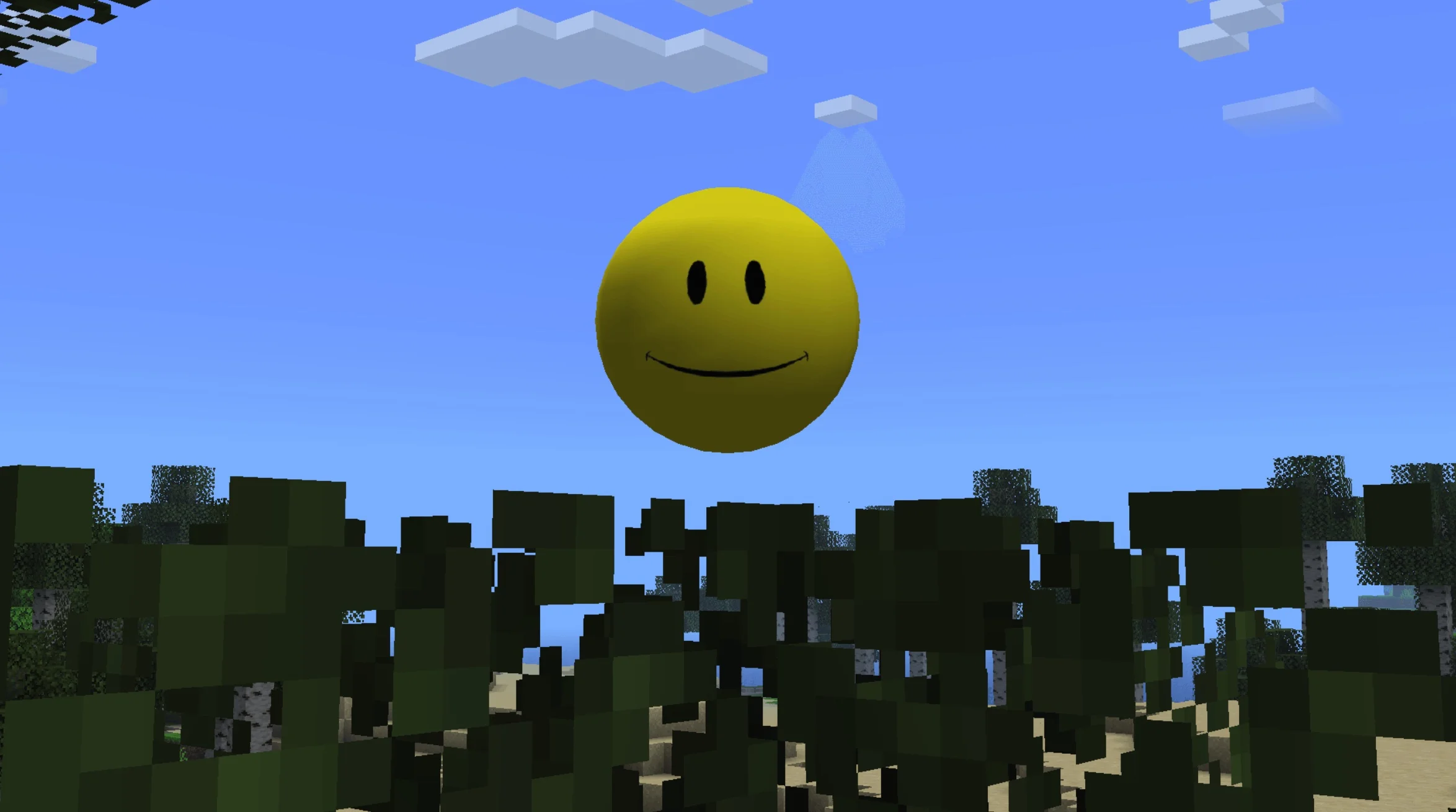
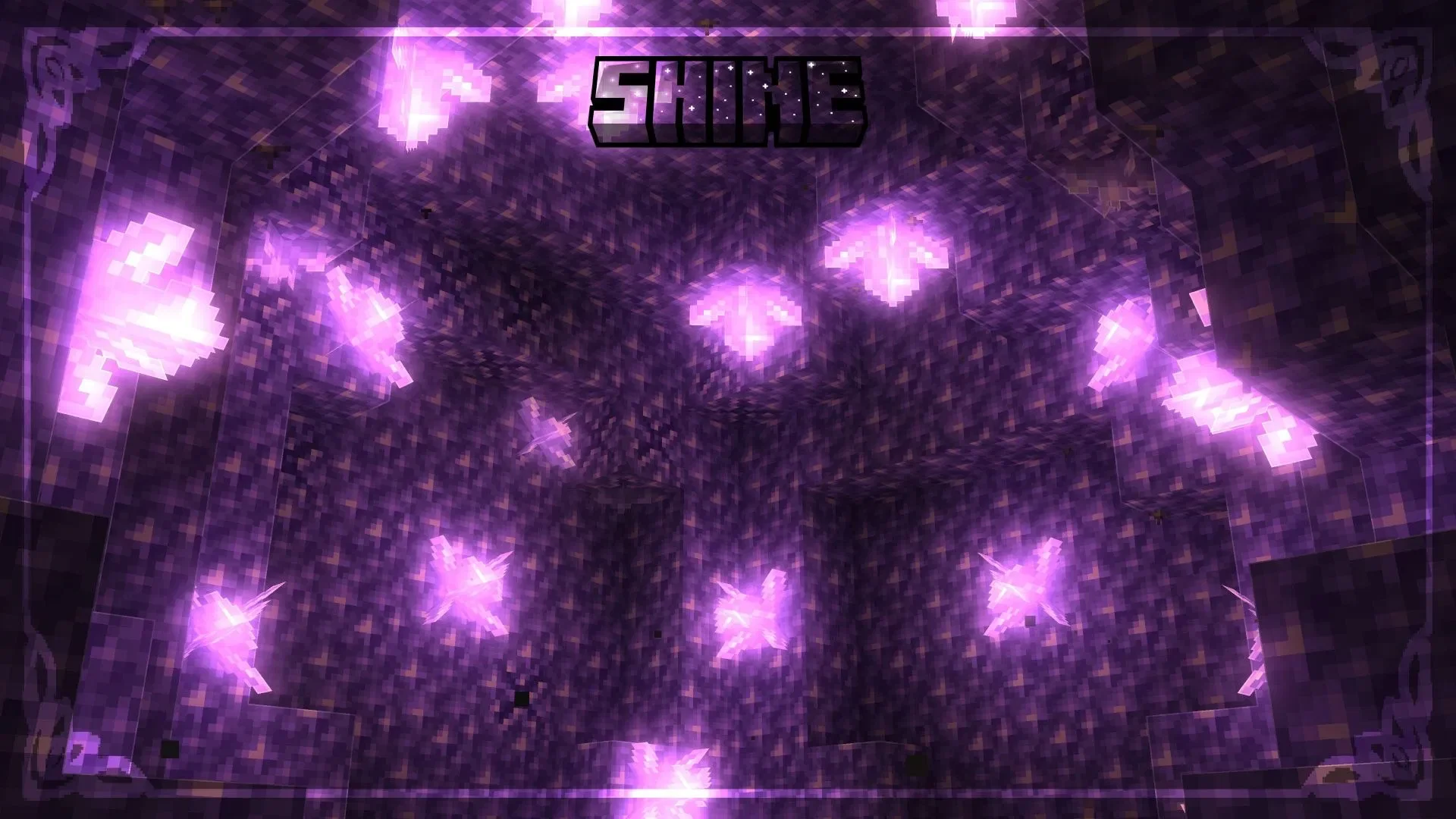
Minecraft is inherently fun, but mods breathe even more life into the game. A vast array of high-quality mods can completely reshape this blocky world, and when it comes to visual optimization, the Shine mod is an option you definitely shouldn't miss. Recently, the development team released the second version of this mod, adding many compelling features.
Below is a detailed introduction to the core information, acquisition methods, and installation process for the Shine mod. The most significant advantage of this popular mod is its ability to significantly enhance visual quality with minimal impact on game performance.
Features of the Shine Mod
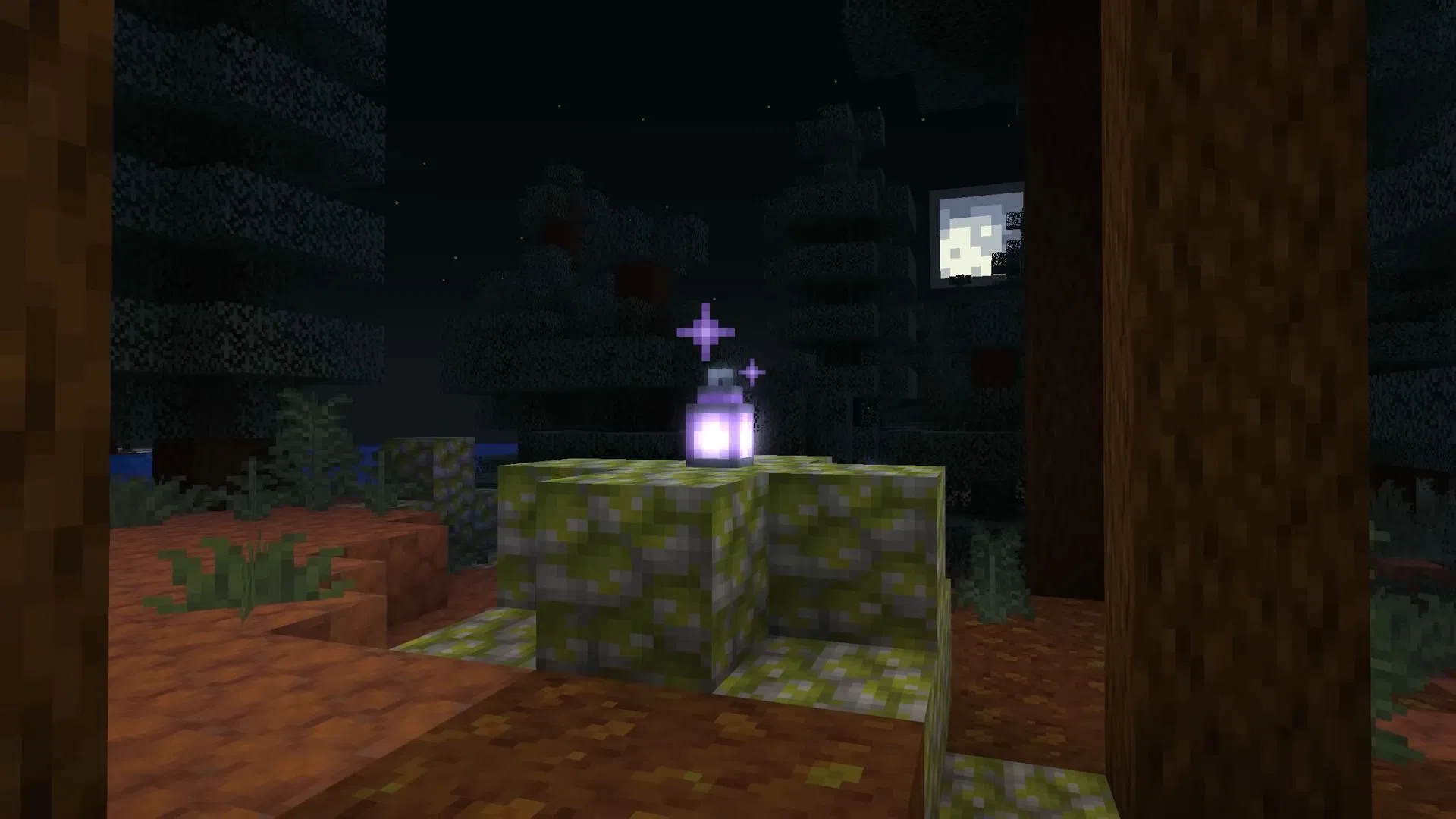
The Shine mod achieves a comprehensive upgrade of Minecraft's visuals with extremely low performance overhead. It cleverly injects a modern visual aesthetic into Minecraft by optimizing specific lighting dimensions, such as selective Bloom and Rim Lighting.
"Bloom" is an effect that causes light to bleed or glow around the edges of objects, giving the screen a dreamlike quality. The mod applies this effect to mobs and various particles, making game elements stand out more in the scene. At the same time, it uses special encoding for the lighting system, allowing different blocks to emit specific light and shadows that match their colors.
The mod also provides rich customization options. For example, "No Shadow Mode" can give the game a completely different, cartoon-like visual style. Rim Lighting outlines the contours of trees, blocks, and other objects with a sharp beam of light; while this unique texture may not be for everyone, players can freely enable or disable it according to their personal preferences.
Shine Mod Installation Guide

The installation process for the Shine mod follows the standard conventions for Minecraft mods. Please follow the steps below:
- Install a Mod Loader: Download and install the official Forge or Fabric installer according to the mod's requirements. Ensure that the loader version perfectly matches the version of Minecraft you are running.
- Download the Mod File: Obtain the .jar file for the Shine mod from trusted platforms such as CurseForge or Modrinth. Keep the original file extension and do not unzip it.
- Locate the Game Directory: Press "Win + R" to open the Run window, type "%appdata%.minecraft", and press Enter to open the core Minecraft data folder.
- Import the File: Find the folder named "mods" (if it does not exist, create one manually and rename it to "mods"). Drag the downloaded .jar file directly into this folder.
- Launch the Game: Open the Minecraft Launcher, select the installed Forge or Fabric configuration from the version dropdown menu, and click "Play."
How to Use the Shine Mod
Once the installation is complete, you can enter the mod settings interface to fine-tune the game's visuals to your personal preference. In this menu, you can find toggles for all effects, including Bloom, Rim Lighting, shadows, and colored lighting.
Additionally, the mod provides more detailed "Bloom Editor" options, allowing players to deeply customize parameters such as bloom intensity, bloom distance, and highlight limits. In the shader settings section, you can also flexibly manage whether block shadows, cloud shadows, or entity shadows are enabled.
By adjusting these parameters, you can ensure that the visual effects precisely match your desired look. The most outstanding feature of the Shine mod is that it works without relying on any additional shader packs, maintaining extremely low performance usage while being perfectly compatible with the Sodium mod.