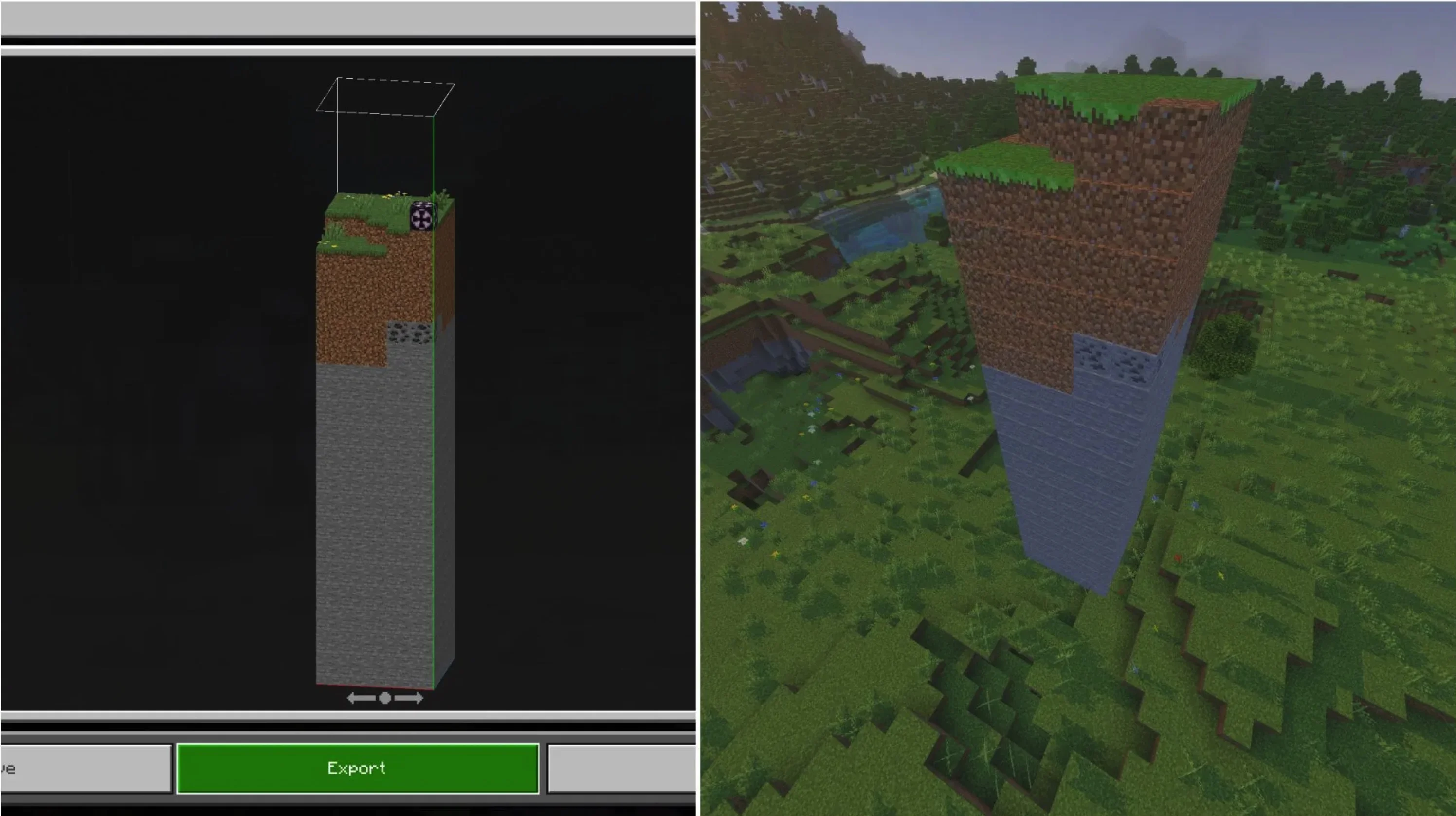
How to Use Structura in Minecraft Bedrock Edition
Structura is a utility tool designed specifically for Minecraft Bedrock Edition that helps players create "ghosts" (holograms) of existing builds. For players who want to replicate beautiful structures in their maps but struggle with calculating the placement of every block, this tool is an excellent solution. Below is a detailed guide on how to configure and use Structura in Minecraft Bedrock Edition.
Obtaining and Preparing the Structura Tool
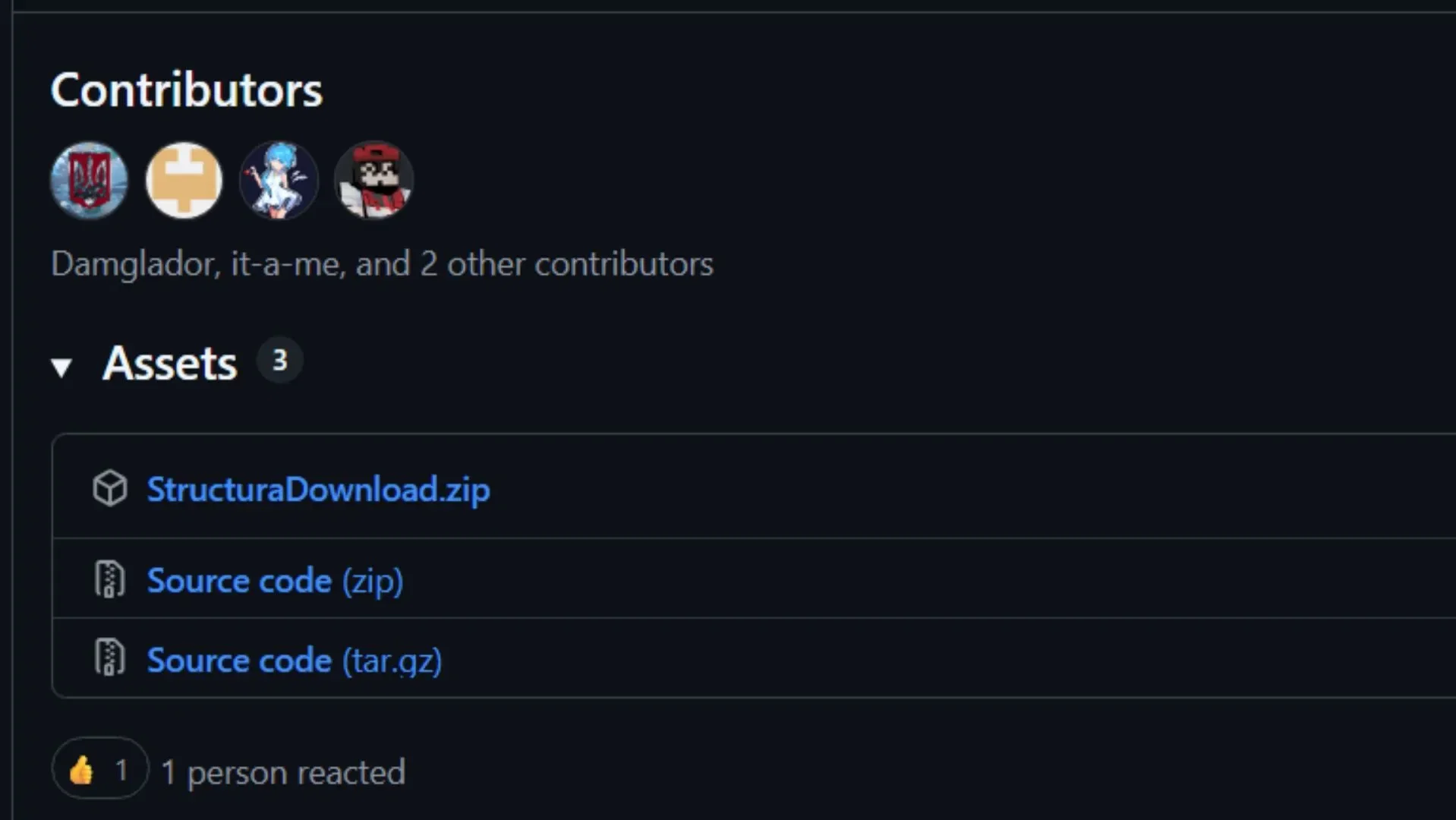
First, visit the developer's GitHub page to download the latest Structura archive file.
Once downloaded, extract it to any folder on your computer. Ensure the tool's environment is ready so you can run the program smoothly in the following steps. This step is the foundation of the entire process, so please make sure the files are fully extracted.
Exporting Building Data
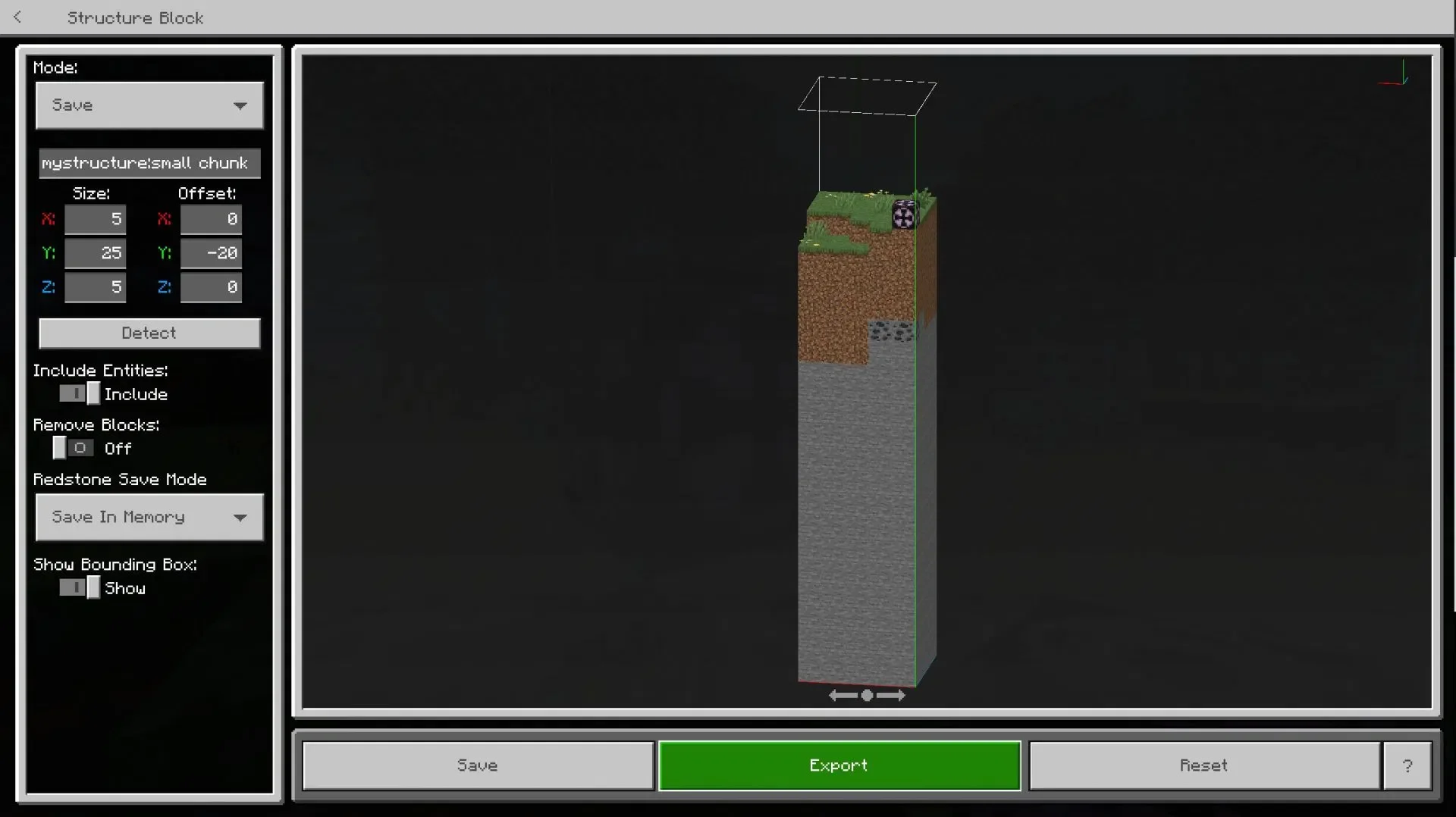
Before starting, enter the Minecraft Bedrock Edition world where the building you want to extract is located. It is crucial that your world has "Cheats" enabled, as you will need a "Structure Block" for the subsequent steps.
You can obtain this block by entering the following command in the chat bar:
/give @s structure_block
After obtaining the Structure Block, place it near the target building. Interacting with it will open a full-screen interface where you can see a portion of the building selected. You need to fine-tune the "Size" and "Offset" coordinates to ensure the entire structure is within the selection area. Once you can clearly see the complete building in the interface, click the "Export" button and save the file to your computer in the .mcstructure format.
Converting .mcstructure Files to .mcpack
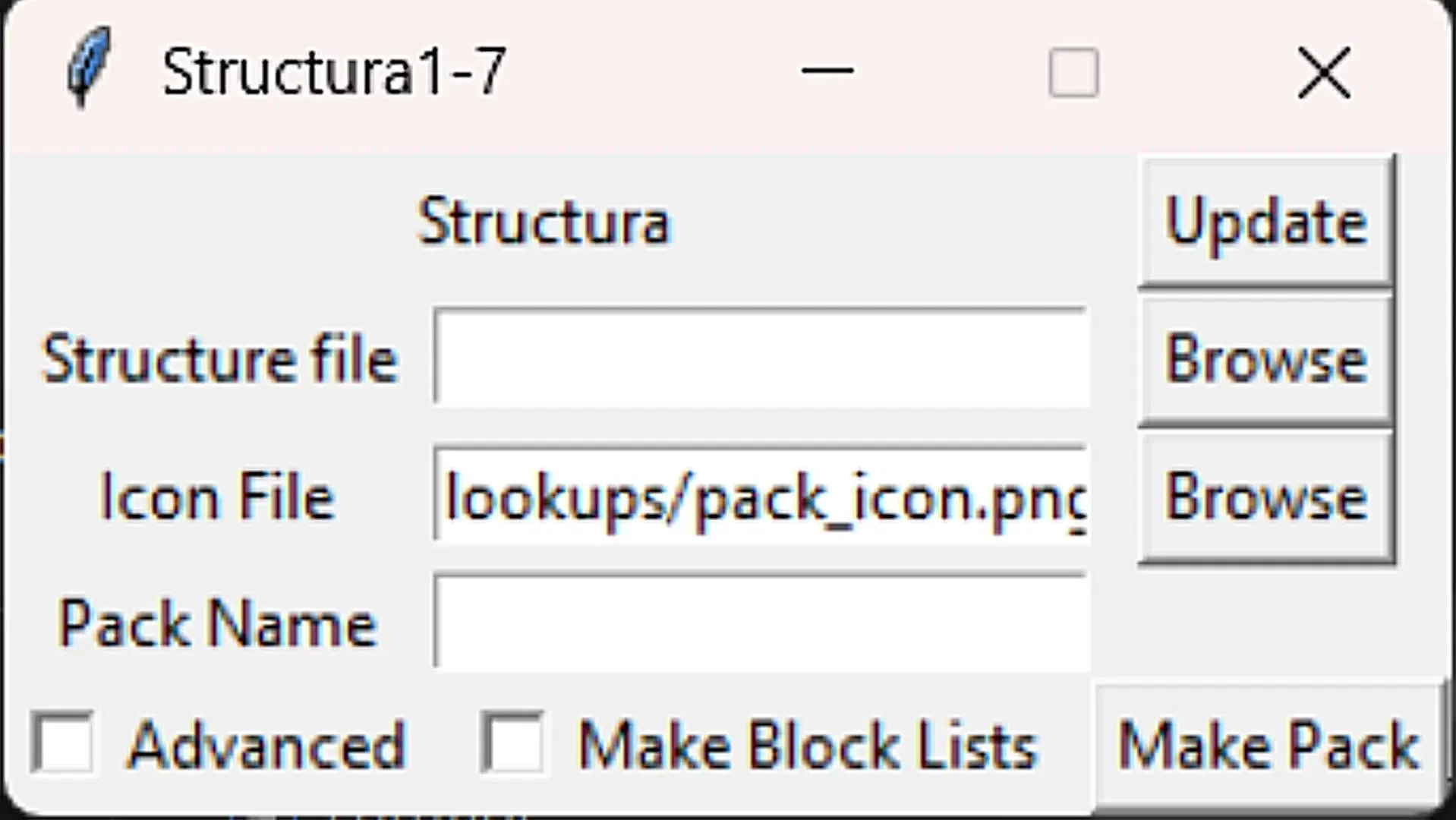
Now, open the Structura tool you extracted earlier. In the software interface, click the first "Browse" button to select and import the .mcstructure file you just saved. Then, enter an easily identifiable name for your resource pack in the third field. Once everything is ready, click the "Make Pack" button in the bottom right corner.
The tool will quickly convert your building file into a .mcpack extension pack suitable for Minecraft Bedrock Edition, and the new file will be saved directly in the folder where the Structura tool is located.
Importing the Resource Pack into the Game
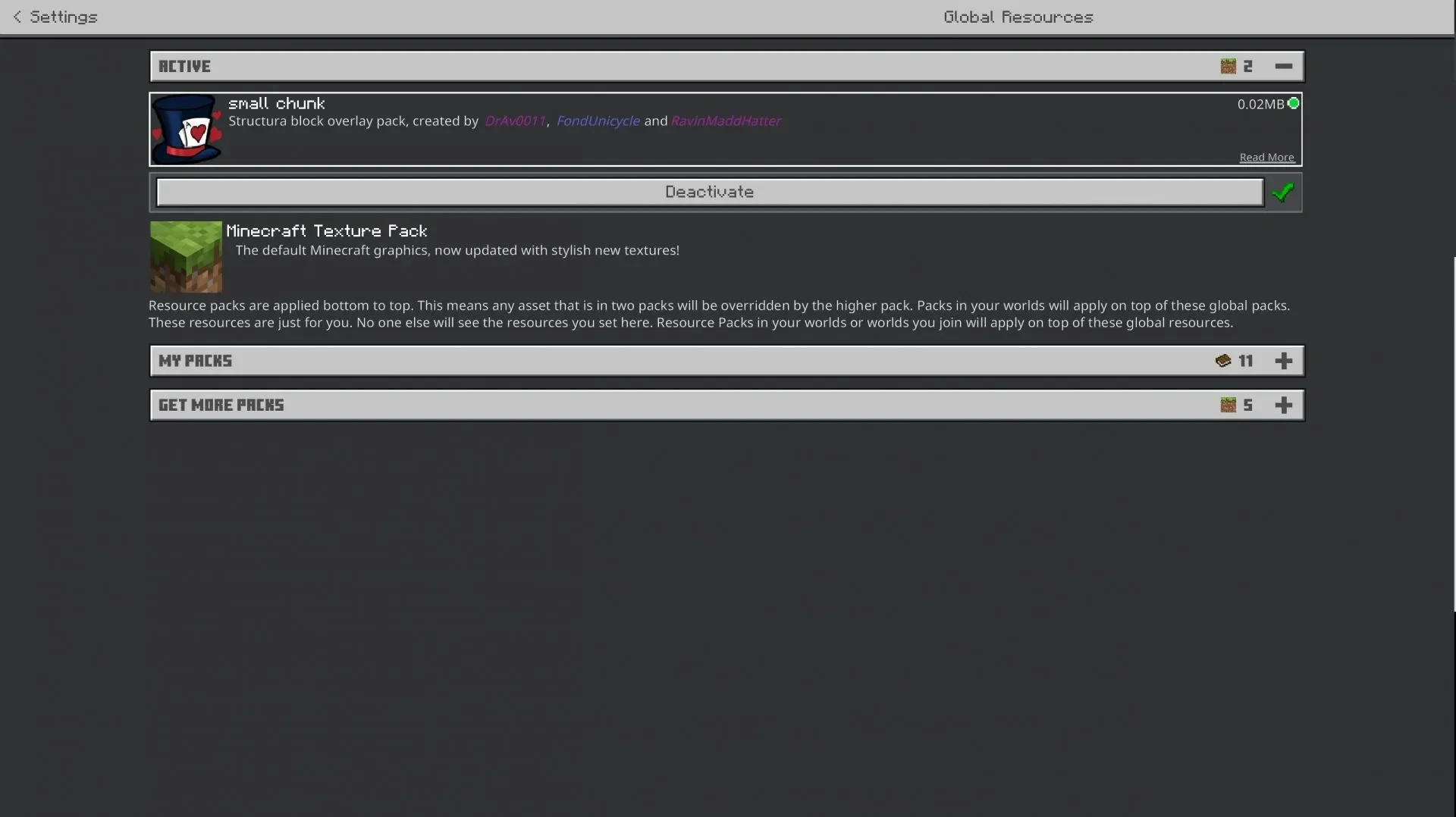
After obtaining the .mcpack file, simply double-click it to import it. It is recommended to completely close the Minecraft game process before doing this to prevent conflicts or unexpected errors during the import.
Once the file is run, the game will automatically launch and display a notification that the import was successful. After the import is complete, go to the game's "Settings" menu, navigate to the "Global Resources" section, find, and activate the resource pack you just named. If you are unsure of the name, you can refer to the label you assigned in the Structura tool; it will appear in the list.
Using Armor Stands to Place Building Blueprints
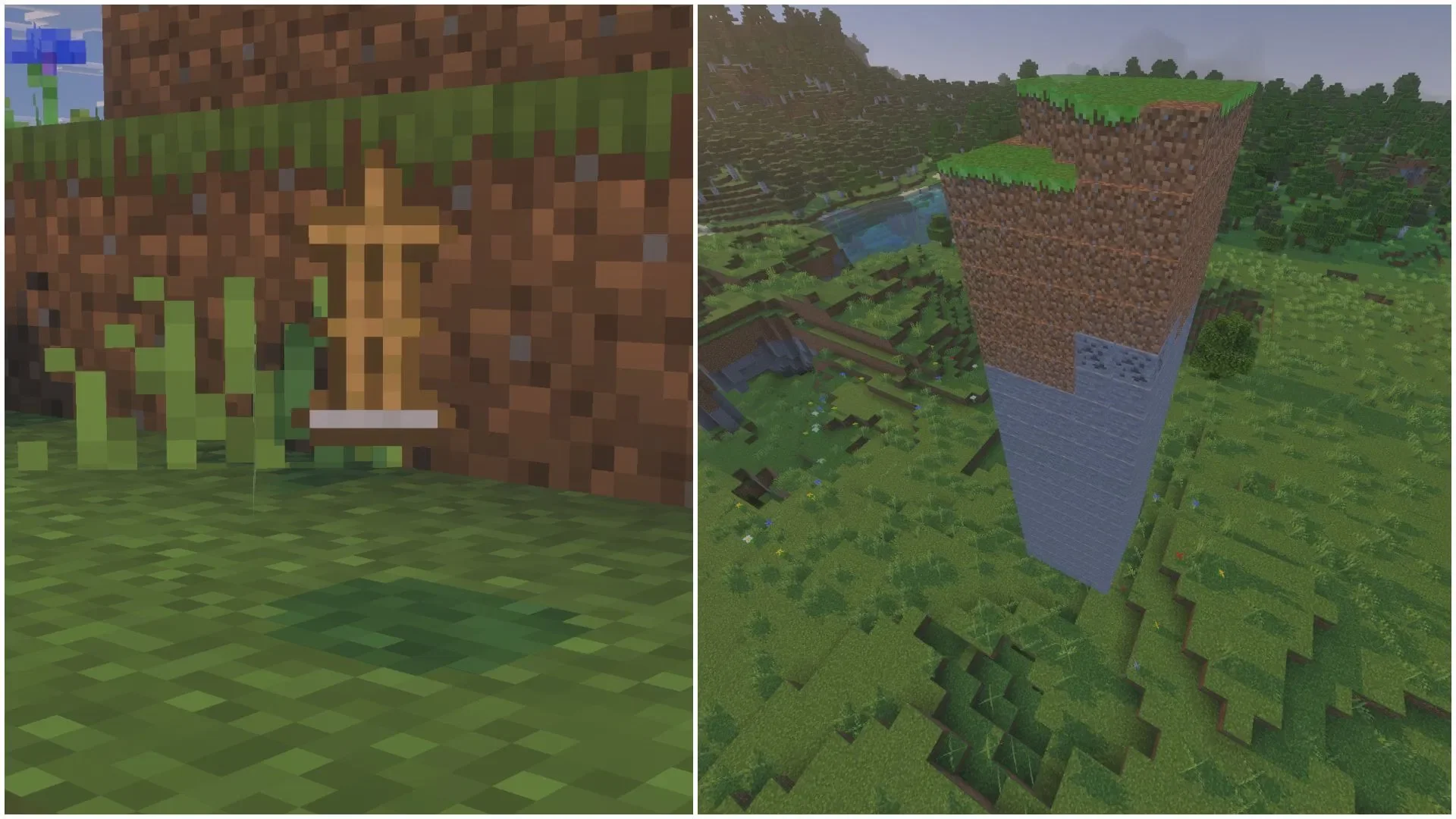
Everything is ready. Now, enter the Minecraft Bedrock Edition map where you want to build your structure. Take an "Armor Stand" from your inventory and place it anywhere on the ground.
The moment you place it, you will see the Armor Stand immediately project a complete ghost of the previously selected building. Now, you can use this 3D ghost as a reference to easily stack blocks one by one, allowing you to replicate even the most massive projects with ease.